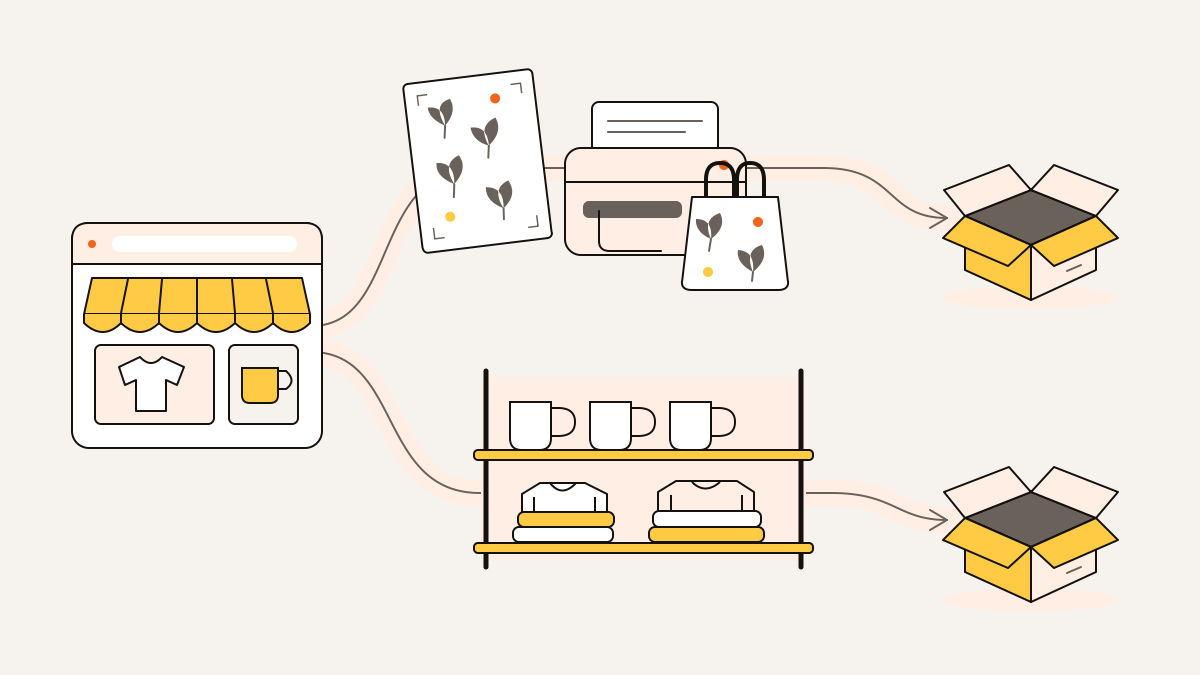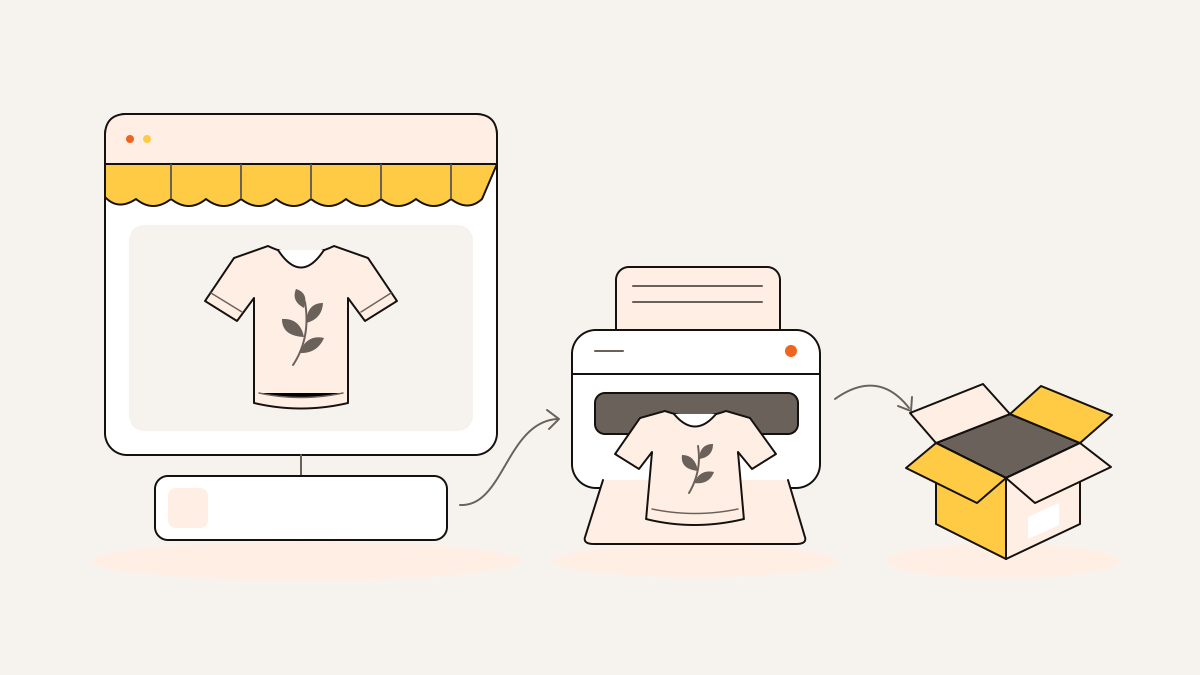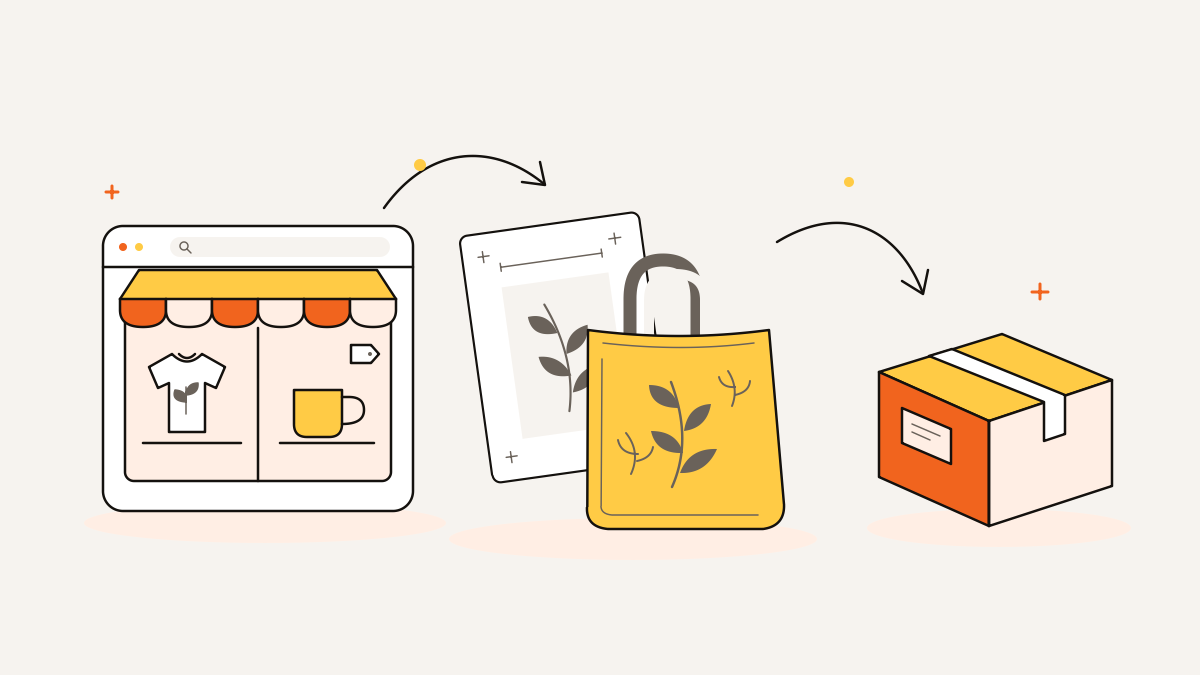
Yes, you can connect Printify to Etsy to sell your designs on physical products. Etsy runs your shop and takes customer orders. Printify’s print providers are the companies that print and ship your products.
Once your Etsy shop is active, open My Stores in Printify and choose Add Store. Select Etsy, then give Printify permission to access your shop.
Next, choose a print provider and publish a garden-themed tote listing. Keep your production-partner details (who makes the tote) separate from the shipping origin (where it ships from).
Before adding more products, check which settings keep your Etsy listing edits from being overwritten. Then follow an order from approval through printing and shipping to see how the process works.
How orders move from Etsy to Printify
Etsy takes the customer’s order. After approval, the print provider you chose on Printify makes and ships it. Printify is a marketplace of independent providers, so your chosen provider does the printing.
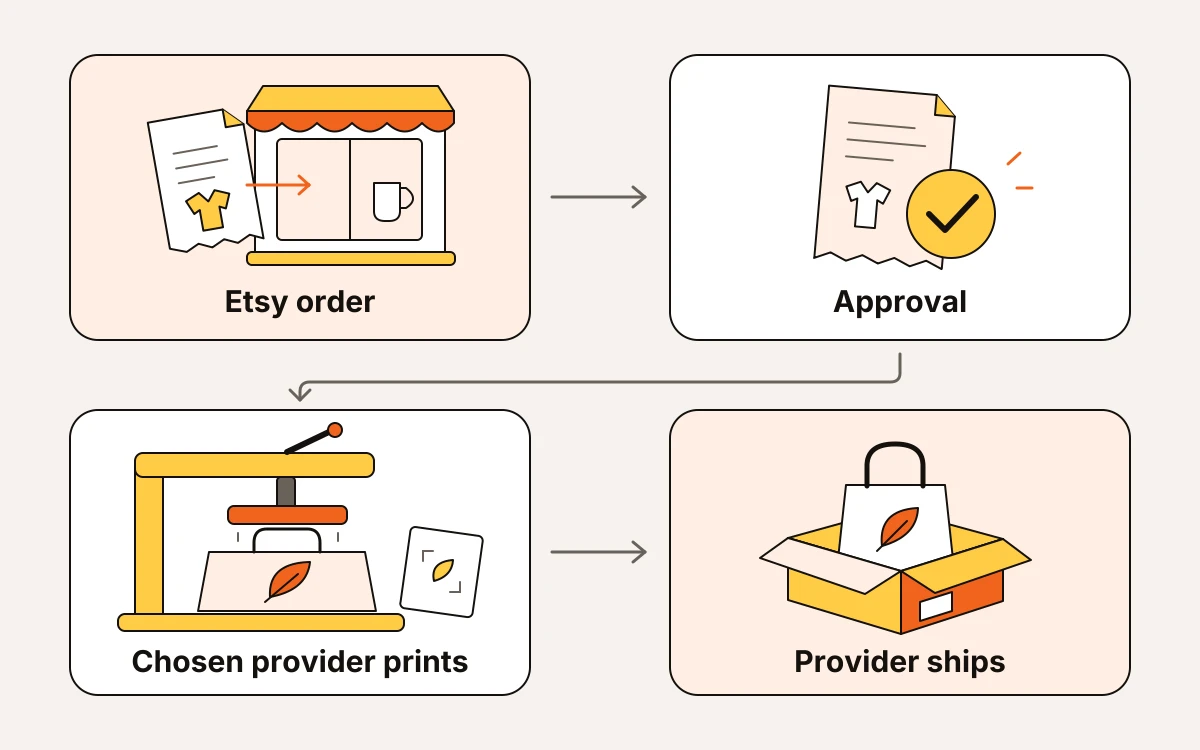
Your order moves through these stages:
- The order from your connected Etsy shop appears in Printify. It then waits for approval before it can move ahead.
- Your Order approval settings control when Printify sends the order to production, when the provider makes it. Check these settings before accepting orders so you have time to review buyer details. The buyer pays through Etsy, but Printify charges your Printify balance or linked payment method separately for production and shipping. Etsy sales proceeds do not automatically pay Printify. You need enough money to cover fulfillment even if your Etsy payout hasn’t arrived.
- The provider makes the product and ships it. Approval, production, and delivery are separate stages.
- Tracking numbers transfer back to Etsy. This triggers Etsy’s shipping emails to the buyer.
You still manage the listing, answer buyer messages, and resolve order problems. If an order hasn’t moved, check its status in Printify first. An order waiting for approval needs a different fix than a shipment already on its way.
Your listing needs a production partner, the business helping make your original design. For a Printify product, you can disclose Printify as that partner rather than creating a separate entry for each print provider. Describe the arrangement accurately: you create the artwork, and Printify arranges printing and shipping through your selected provider.
- In Etsy’s Shop Manager, open Settings → Production partners and choose Add a new production partner.
- Enter Printify as the business name. Use Printify’s business location for the partner location, not your address or the tote’s shipping origin. If you hide the business name from buyers, use a descriptive public title such as “Print-on-demand service.”
- Explain that you create the original designs and use Printify to arrange production and shipping. Complete Etsy’s questions about why you use the partner and each business’s role, then save the entry.
- Open the tote listing in Etsy’s listing editor. Select the saved Printify entry in the Production partners section and save the listing. Repeat this assignment for each listing made through Printify.
The partner location identifies the business. The listing’s Shipping origin identifies where your selected provider ships the tote. Set that separately in the listing’s shipping profile.
Connect your shop, then choose your first provider
Confirm your shop is connected before you build a product. Then choose a Printify print provider based on your customers’ location and what you sell.
- Your Etsy shop must be active before you connect it to Printify. If you’ve only created an Etsy account, finish opening your shop first. Then you can authorize the connection, which gives Printify access to your shop.
- In Printify, follow My Stores → Add Store → Etsy, then approve access. Before adding products, make sure Etsy shows as a connected store in your Printify dashboard.
- Start with where your customers live. Then compare providers’ shipping estimates and the product options they offer. Say you sell a garden-themed tote: your provider needs to offer the right material and color. The print area, where your design goes, also needs to fit your design. Order a sample first, since quality can vary by provider. It lets you check the print, fabric, and stitching before building more listings around that tote. You can use different providers for different products.
- Check the ship-from location in your Etsy shipping profile, which holds the listing’s shipping settings, against your chosen provider’s shipping details. If the provider handles orders at several locations, confirm which one applies to your tote.
You’re ready to move on when you can see the store connection and have chosen a provider for your tote. You should also have ordered a sample and checked where the package will ship from.
Build and publish a garden-themed tote listing
Build your tote listing around your chosen provider, and use actual costs to set your price. After publishing, check the listing in Etsy before sending shoppers to it.
For the garden-themed tote, use your original illustration of herbs and wildflowers. Here’s how to get that listing ready:
- Upload the botanical illustration in Printify’s design editor and adjust where it sits. The product mockups, which preview your design on the tote, help you check its balance. Small leaves and lettering should be readable, with enough room around the edges.
- Give the listing a clear title: “Garden Tote Bag with Botanical Illustration.” In the description, explain the artwork and how shoppers can use the bag. Include your chosen product’s material, dimensions, and care details. Work phrases such as “botanical tote” into readable sentences. Stick to features the actual tote has.
- Set your price using your provider’s costs. Enter your actual Printify base cost and shipping charge in eMarketInsight’s free Etsy fee calculator. Account for Etsy listing and transaction fees, plus any applicable Etsy Payments fees for handling payments. Compare what’s left with your intended profit margin: the share of the sale you want to keep. If you include shipping in the item price, its cost still comes out of the sale.
- Publish from Printify, then open the listing in Etsy to check it. Printify creates the listing with mockups, a description, and pricing details. Check each part copied from Printify before customers see it.
Run this short check on the published tote:
- Every variant, or product option, matches what you intended to sell, at the right price.
- The description’s materials, dimensions, and care instructions match the selected tote.
- The assigned Etsy shipping profile shows the correct ship-from location and customer shipping charges.
- Etsy Processing time covers preparation before shipment. Allow for the wait before Order approval sends the tote to production, plus your provider’s stated production time. Check that the delivery estimate shown to customers also includes shipping transit time.
Avoid overwriting photos or keeping outdated shipping settings
Republishing, or sending a product update from Printify to Etsy, can replace your Etsy edits. It can also leave you charging the old provider’s shipping rates. Product edits don’t carry over automatically as you make them. Before each update, review what Printify will send.
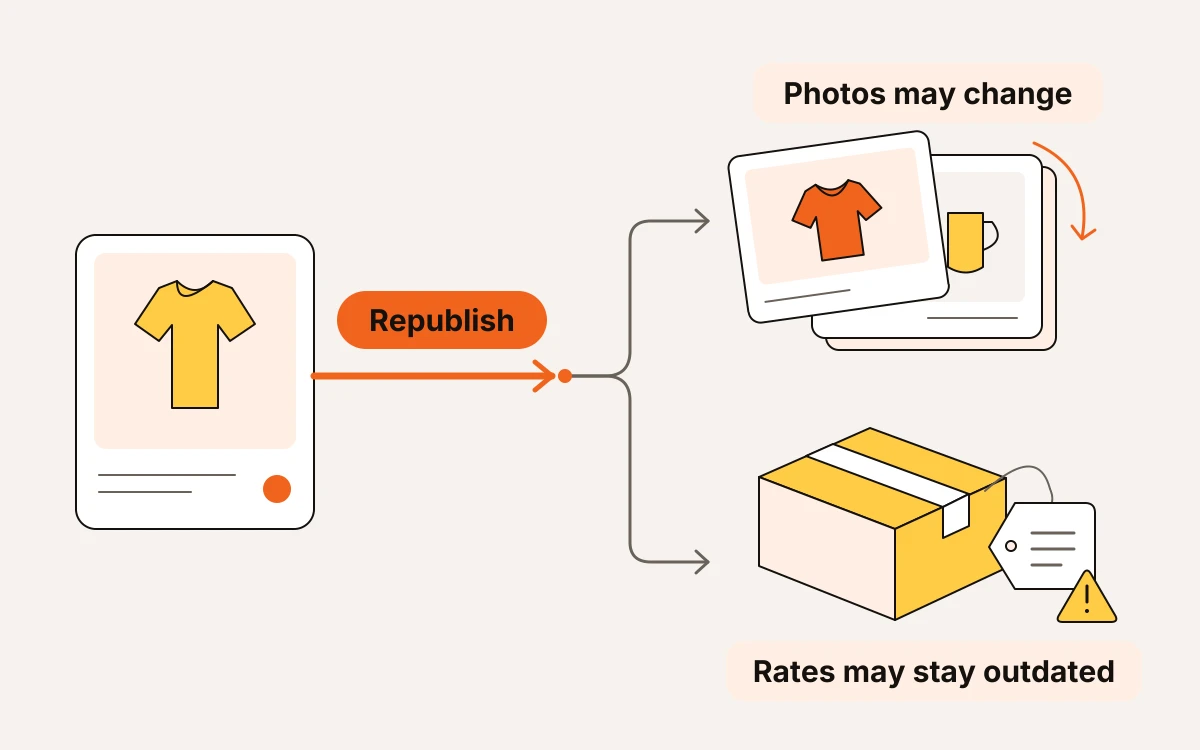
- Review the republishing checkboxes before you publish. Each box controls which details Printify replaces in your live Etsy listing. Select only the details you want to update.
- Uncheck Mockups to keep your custom Etsy photography. If you’ve replaced the garden-themed tote’s mockups with sample photos on Etsy, leaving Mockups checked will overwrite those photos when you republish.
- After changing your Printify print provider, check the product’s variants, design placement, and mockups. Review your Etsy shipping profile, then republish with the shipping profile checked. This keeps your listing from using the previous provider’s shipping charges. You can update shipping while leaving Mockups unchecked to protect your photography.
- Confirm priority shipping, a faster shipping option, before offering it. Whether it’s available depends on your selected provider. You’ll find that information in Printify’s shipping table. If the provider doesn’t offer it, don’t promise faster shipping in your listing or customer messages.
Run a first-week check before expanding your catalog
Keep your catalog small until you’ve checked the settings and tracked your first order through printing and shipping. Use this week to catch problems while they’re still easy to fix.
- Secure your Etsy shop with two-factor authentication, which adds a second check when you sign in. Use strong, unique passwords for both accounts.
- Confirm your Order approval settings and available funds for fulfillment before accepting orders.
- Confirm the garden-themed tote’s tracking reached Etsy. Resolve any payment or order-status errors before promising a shipping date.
- Keep a list of billing failures, listing details that don’t match, or missing tracking. Fix those problems before publishing more products. Recheck Printify settings whenever you add products or change how you set prices.